Your website & WordPress
WordPress is installed automatically on each new website and updates itself (core, plugins and themes).
Find your WordPress login
- Click the folder icon in the panel's top bar to open the File Manager. It opens in your home folder.
- Open the file
wp-credentials-demo.com.txt(named after your domain). It contains the WordPress address, admin username and password.

- Go to
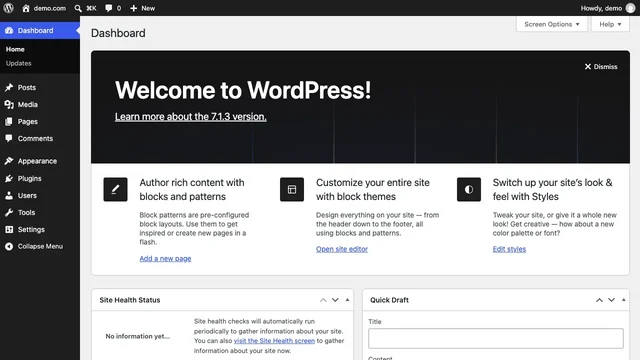
https://demo.com/wp-login.php(your own domain; usehttp://until SSL is on) and log in.

Change your WordPress password
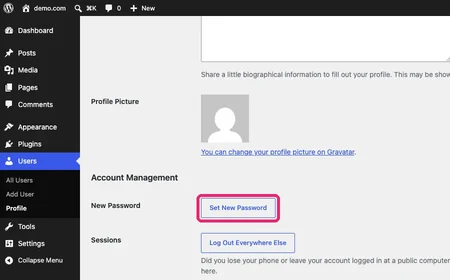
- In WordPress, go to Users → Profile.
- Under Account Management, click Set New Password, then Update Profile.
- Once the new password is in your password manager, delete the credentials file in the File Manager.
Use your own files instead of WordPress
- In the File Manager, go to
web→ your domain →public_html. - Select the WordPress files and folders and delete them.
- Click Add files to upload your own (your homepage must be
index.htmlorindex.php). - Optional: in the DB tab, delete the WordPress database (its name is your username followed by
_wpand a code).

Upload with SFTP (SSH key)
| Setting | Value |
|---|---|
| Protocol | SFTP |
| Host | panel.1.bunnyly.com |
| Port | 22 |
| Username | Your panel username |
| Sign-in | SSH key (passwords aren't accepted) |
- Create a key pair in your SFTP app (FileZilla, Cyberduck or WinSCP/PuTTYgen) and copy the public key.
- In the panel, open the person icon (top-right) → Manage SSH Keys → Add SSH Key, paste the public key and click Save.
- In your SFTP app, connect with the settings above and your private key. You start in your home folder; your website is in
web/demo.com/public_html.


Command-line (SSH) access isn't included; SFTP is for files only.